When it comes to setting up or troubleshooting your network, understanding the core components of your router is essential. Among these, the WAN port vs LAN port distinction is one of the most critical yet often misunderstood aspects. While both ports may seem similar, they serve entirely different purposes that are fundamental to your network’s performance and reliability. Whether you’re looking to optimize your industrial Ethernet setup or simply trying to ensure smooth internet access at home, knowing how to effectively use and configure these ports can make a world of difference.
In this article, we’ll break down the difference between WAN and LAN ports, explain their roles, and show you how they impact everything from your internet speed to the overall efficiency of your network.
What is a WAN Port vs. LAN Port?
Before diving into the differences, let’s first define what these ports are and how they are used in the context of your network.

WAN Port: The Gateway to the Internet
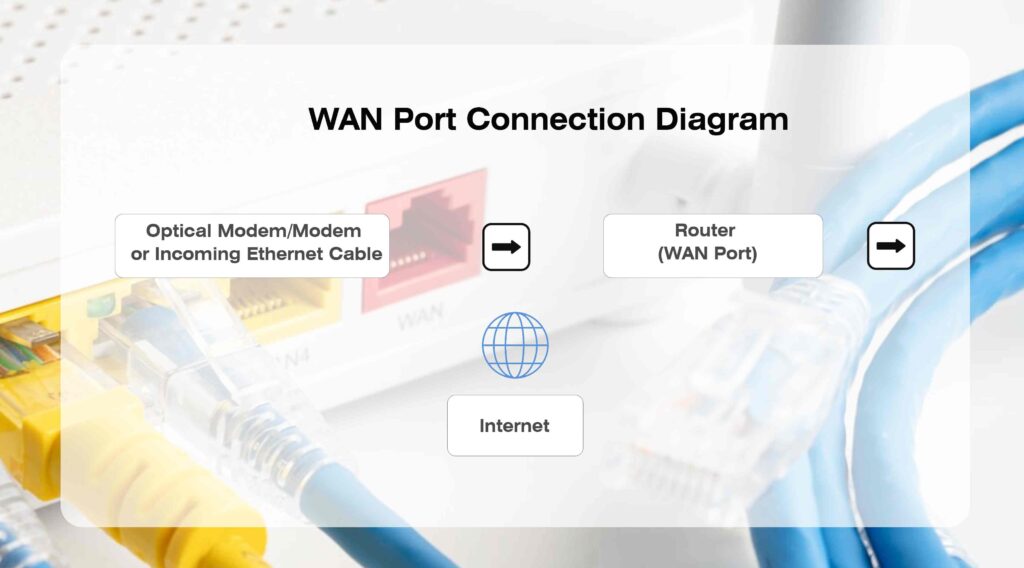
The WAN (Wide Area Network) port on your router serves as the connection between your local network and the broader internet. It is often referred to as the “internet port” because it connects directly to your ISP’s (Internet Service Provider) equipment, such as a modem or fiber optic line.
Key Functions of the WAN Port
- Primary Role: The WAN port connects your router to the internet. It is typically linked to your modem, where you receive an IP address from your ISP.
- Public IP: The WAN port assigns your network a public IP address, which is used to identify your network on the internet.
- Connection to ISP: The ISP provides the connection through this port, enabling you to access the internet.
How the WAN Port Works
The WAN port typically has a blue color or is clearly labeled with “WAN” or “Internet.” This helps differentiate it from LAN ports on the router, which often have standard colors like yellow or white.
When a network issue arises, one of the first checks should be the WAN port’s status. If it is not connected, you cannot access the internet.
LAN Port: Connecting Internal Devices
The LAN port is the other essential port on your router, responsible for connecting your internal devices to the local network. Devices such as computers, printers, and servers can be plugged into the LAN port, forming your local area network (LAN).
Key Functions of the LAN Port
- Private Network: It connects devices within the same network, allowing them to communicate, share files, or access shared resources.
- Private IP: Devices connected to LAN ports are assigned private IP addresses that are used within the network. These addresses help devices interact with each other but are not directly exposed to the internet.
- Multiple Devices: A router typically has several LAN ports, enabling multiple devices to connect simultaneously to the internal network.
How the LAN Port Works
Each device connected to a LAN port is assigned an internal IP (often in the 192.168.x.x or 10.x.x.x range).
LAN ports are often labeled with numbers, such as LAN 1, LAN 2, etc. These are used to connect your computers, printers, and other devices to the internal network.

Key Differences Between WAN and LAN Ports
Although both the WAN and LAN ports are integral to your router’s function, they serve different purposes:
WAN Port:
- Connects your router to the internet (public network).
- Uses a public IP provided by your ISP.
LAN Port:
- Connects devices within your local network (private network).
- Uses private IP addresses for internal communication.
Comparison Chart: WAN vs LAN Ports
To further enhance your understanding, here is a comparison chart that highlights the key differences between WAN and LAN ports.
| Feature | WAN Port | LAN Port |
|---|---|---|
| Port Type | WAN | LAN |
| Primary Role | Connects the local network to the Internet | Connects internal devices within the local network |
| Connection Type | Connected to modem or ISP’s Internet line | Connected to internal devices (computers, printers, etc.) |
| IP Address Type | Public IP | Private IP |
| Devices Connected | Only 1 device (ISP modem) | Multiple devices (computers, printers, servers) |
| Typical Color | Typically blue or labeled ‘Internet’ | Typically yellow or white |
| Usage in Home Networks | Provides internet access | Used for connecting devices within the same home or office |
| Usage in Industrial Networks | Handles internet connectivity for industrial systems | Used for internal communication between industrial devices |
Ethernet Cable: WAN or LAN?
One of the common queries is whether an Ethernet cable should be used for WAN or LAN connections. The answer depends on the specific need:
- Ethernet Cable for LAN: If you are connecting devices within your local network (such as a desktop to the router), you use an Ethernet cable in the LAN port.
- Ethernet Cable for WAN: If you are connecting your modem to the router or another internet source, you would plug the Ethernet cable into the WAN port.
What’s the Difference Between a WAN Port and LAN Port on a Router?
A router typically has one WAN port and multiple LAN ports. The WAN port serves as the link between your network and the internet, whereas the LAN ports allow your internal devices to connect to the router and communicate with each other.
- WAN Port: Connects to the modem or internet source and provides internet access.
- LAN Port: Connects devices within your local network to allow file sharing, printing, and more.
Router Setup and Troubleshooting: WAN vs LAN
Setting up your network involves configuring both WAN and LAN ports. Proper configuration ensures smooth communication between your local network and the internet.
WAN Configuration:
- The WAN port is typically connected to your ISP’s modem, which provides the internet connection.
- A common issue is mistakenly plugging the modem into a LAN port, which will prevent the router from obtaining an IP address from the ISP.
LAN Configuration:
- LAN ports connect devices within your local network. Each device receives a private IP address via the router’s DHCP server.
Port Forwarding: WAN and LAN
Port forwarding is often necessary for certain applications like gaming, remote access, or camera surveillance. Here’s how WAN and LAN ports play a role:
- WAN Port Port Forwarding: Directs traffic from external sources (internet) to specific services inside your local network.
- LAN Port Port Forwarding: Allows internal devices to access specific network services (like file sharing or web servers) within your local network.
Understanding the difference between WAN and LAN ports is crucial for setting up an efficient and secure network. The WAN port is your gateway to the internet, while the LAN port connects devices within your local network.
Whether you’re setting up a new network or troubleshooting existing issues, knowing how these ports work together will help you maintain optimal performance and minimize network disruptions.